If you run a Synology NAS, local RAID is not enough. It helps with disk failure, but not with accidental deletion, ransomware, or site incidents. You still need an off-site backup.
I have been testing Synology Hyper Backup with Cloudflare R2, and it is one of the most practical cloud backup setups I have used recently. Configuration is straightforward, pricing is easier to reason about, and S3 compatibility keeps the tooling familiar.
This post walks through why R2 is a good destination, how to configure it in Synology, and the trade-offs you should understand before rolling it out.
Why Cloudflare R2 is a strong target for Synology backups
From a developer and operator perspective, R2 has several concrete benefits:
- S3 compatibility: Hyper Backup already supports S3-style targets, so integration is natural.
- No egress fees: one of the biggest practical wins. Restores and verification jobs are less stressful financially.
- Predictable billing model: easier to estimate storage growth and monthly cost.
- Cloudflare network and platform tooling: useful account controls, API token model, and growing observability.
- Good fit for hybrid setups: local NAS for speed + cloud bucket for resilience.
I especially like the no-egress angle. Restore tests become a technical exercise, not a finance negotiation.
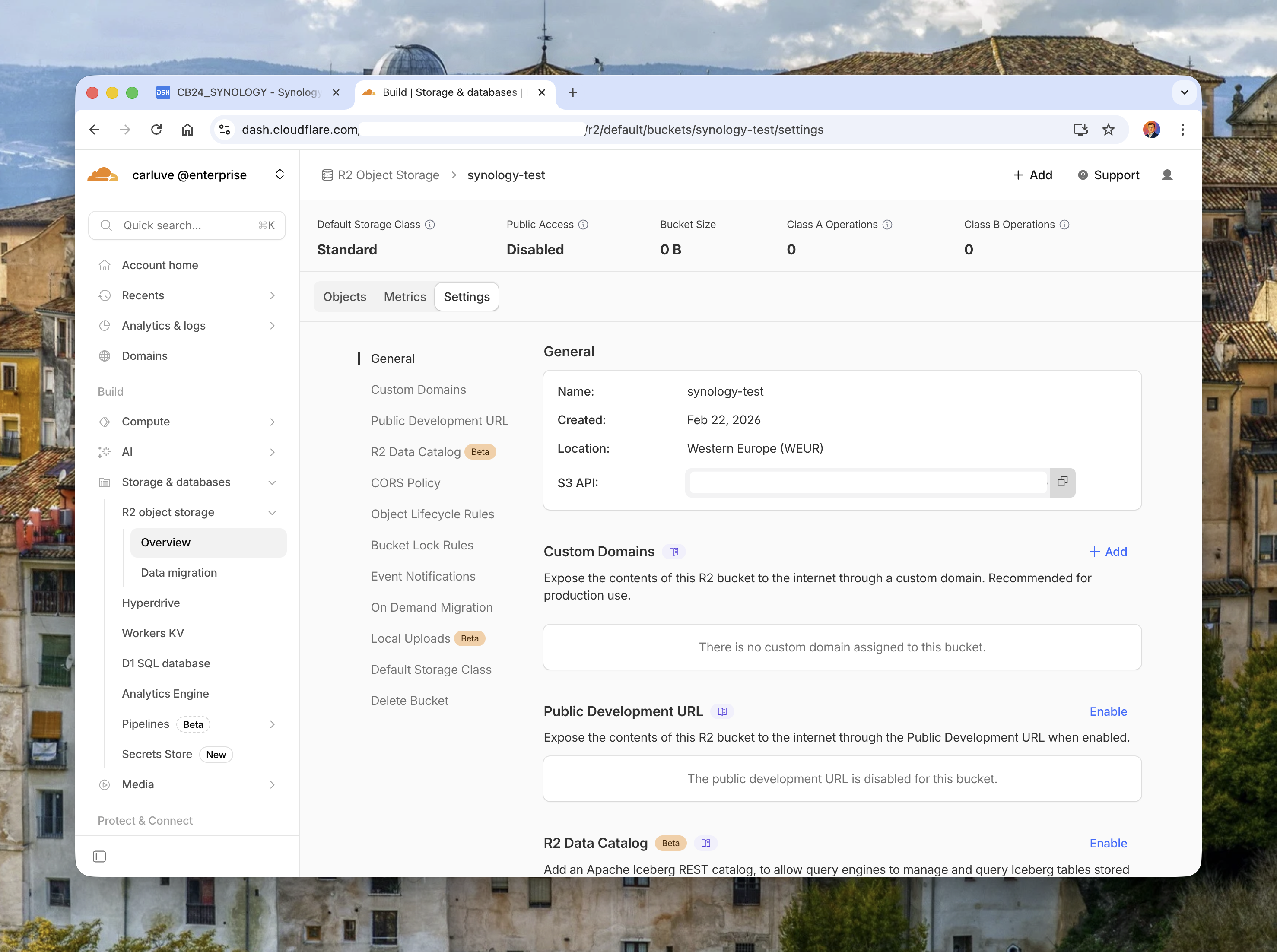
Image: Cloudflare R2 bucket settings page showing S3 API endpoint and bucket details.
Prerequisites
Before configuration, prepare these items:
- A Synology NAS with Hyper Backup installed.
- A Cloudflare account with R2 enabled.
- A private R2 bucket (for example,
synology-backup-prod). - R2 API credentials (Access Key + Secret Key) scoped to the bucket.
- A retention decision (versions, rotation, and recovery objectives).
Step-by-step setup in Hyper Backup with R2
In Synology DSM, open Hyper Backup and create a new task.
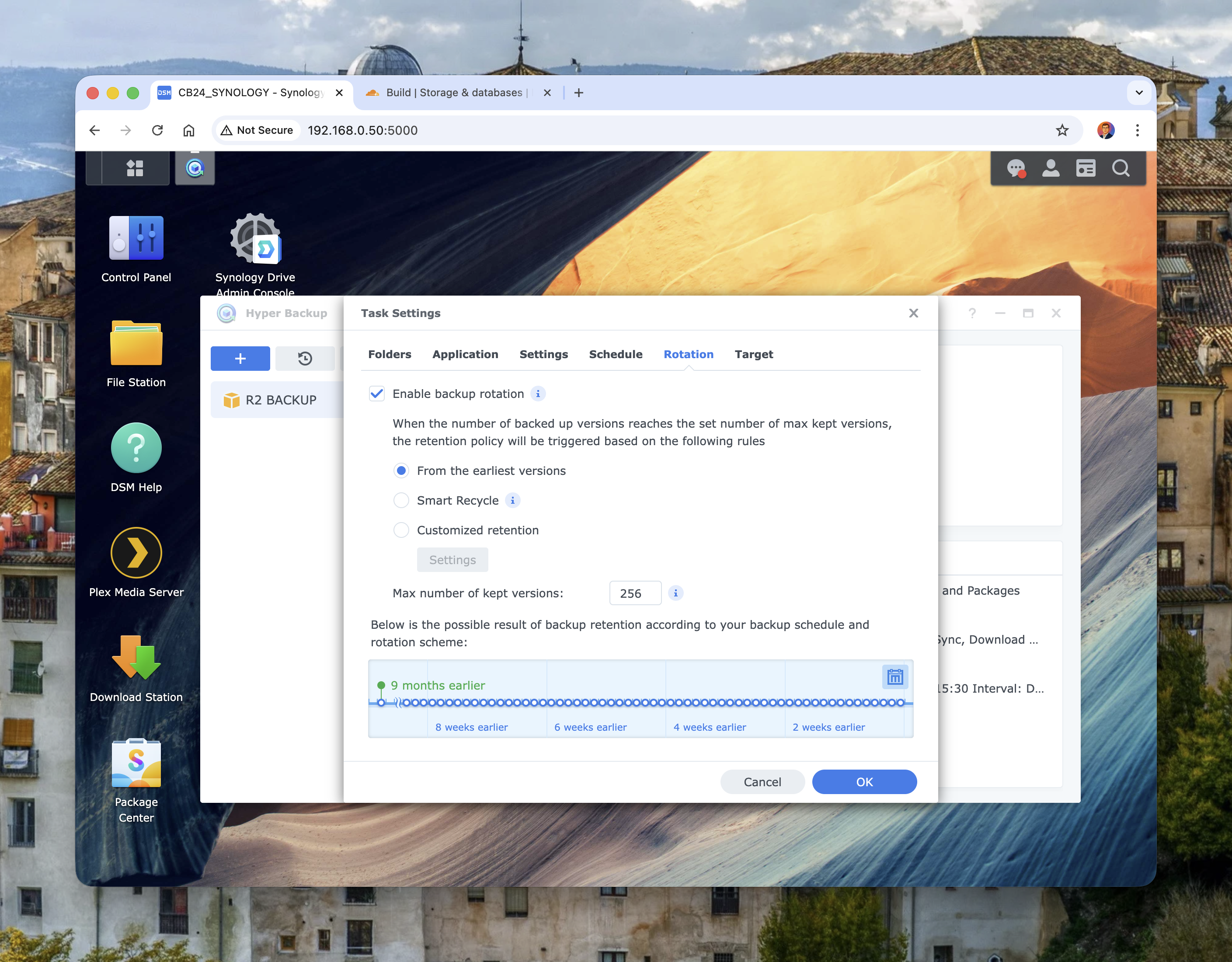
Start by selecting the backup type:
Image: Hyper Backup wizard showing backup type options.
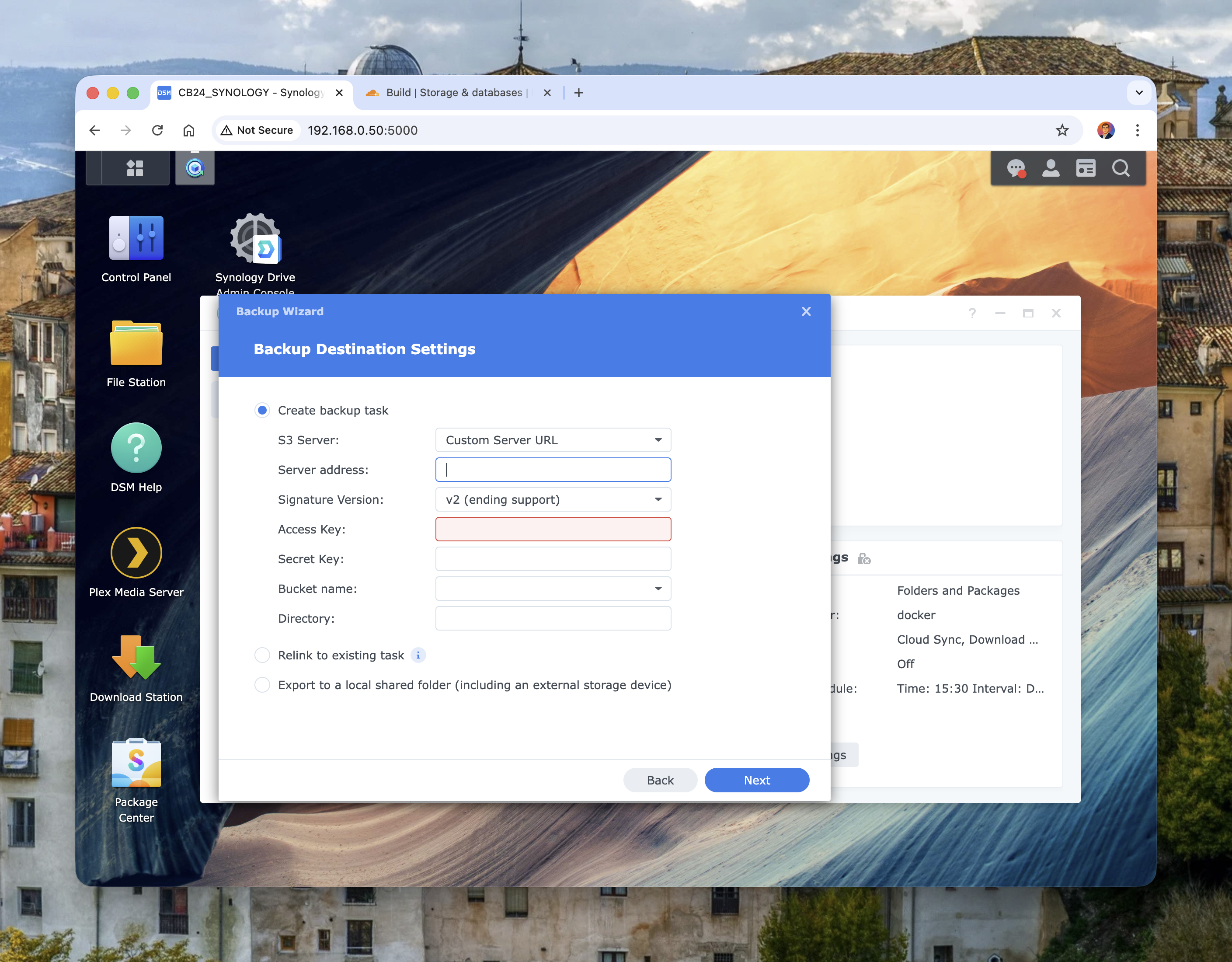
Then configure destination settings using S3-compatible values:
- S3 Server:
Custom Server URL - Server address:
<accountid>.r2.cloudflarestorage.com - Signature version: use v4 (v2 is legacy/deprecated)
- Access Key / Secret Key: from R2 API token/credentials
- Bucket name: your R2 bucket name
- Directory: optional logical prefix (for example
hyper-backup/main-nas)
Image: Hyper Backup destination form with custom S3 server fields.
Then enable the important safety switches:
- client-side encryption in Hyper Backup
- integrity check schedule (weekly or monthly)
- backup schedule aligned with business hours and NAS usage
A quick endpoint validation from a workstation can help before large first syncs:
export AWS_ACCESS_KEY_ID="<r2_access_key>"
export AWS_SECRET_ACCESS_KEY="<r2_secret_key>"
export AWS_DEFAULT_REGION="auto"

aws s3 ls s3://synology-backup-prod \
  --endpoint-url https://<accountid>.r2.cloudflarestorage.com
If this command returns cleanly, your endpoint and credentials are correct.
Retention, rotation, and lifecycle strategy
The default mistake is keeping too few versions.
In Hyper Backup, enable rotation and use a policy that reflects your real recovery window.
Image: Hyper Backup rotation settings with retention controls.
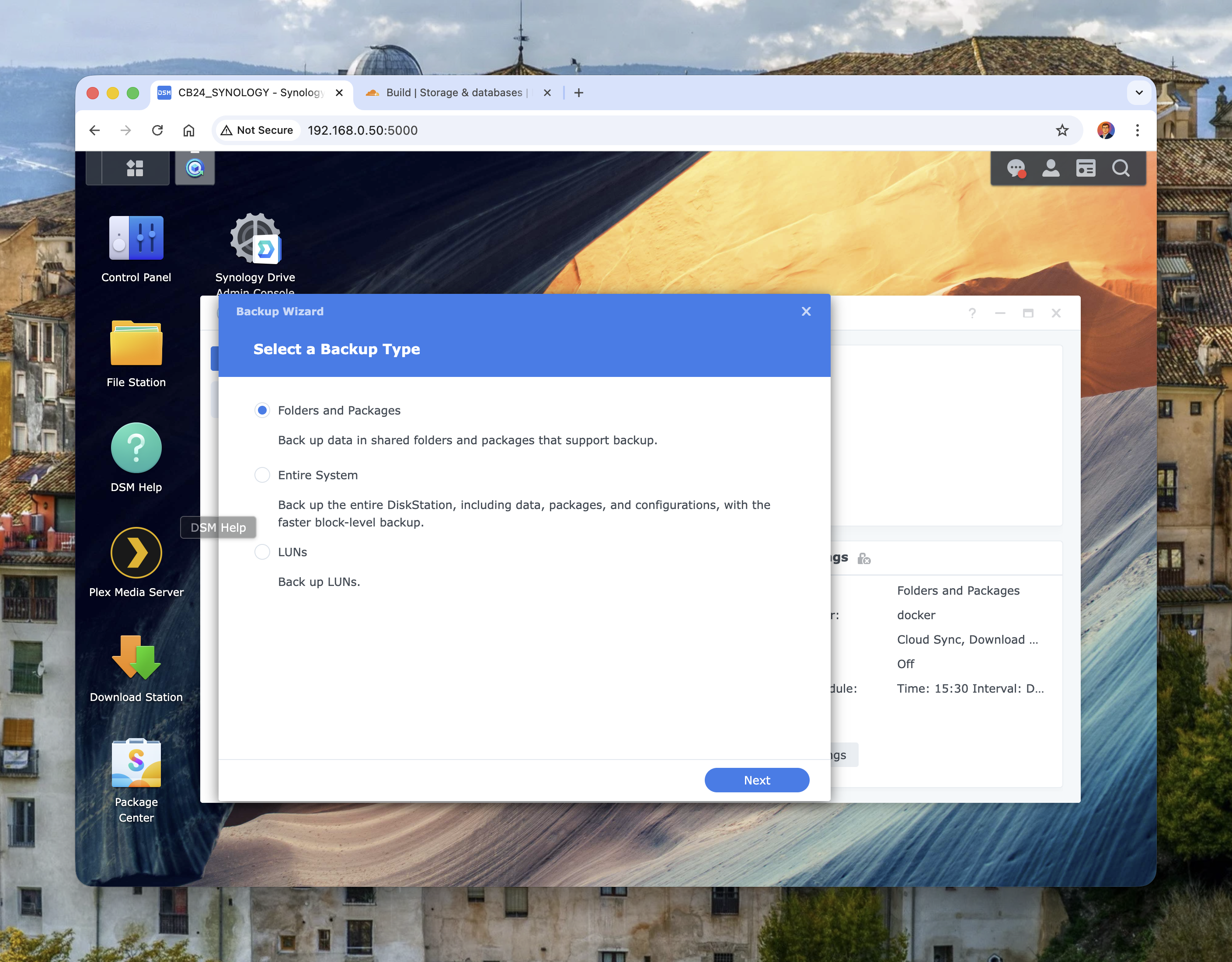
Typical starting point:
- daily backups
- Smart Recycle or customised retention
- 60-120 versions depending on churn
- monthly restore test to a separate shared folder
On the R2 side, lifecycle rules help with long-term cost control.
Example lifecycle rule (S3-compatible API) to expire a specific prefix after 365 days:
{
  "Rules": [
    {
      "ID": "expire-old-archives",
      "Status": "Enabled",
      "Filter": { "Prefix": "archive/" },
      "Expiration": { "Days": 365 }
    }
  ]
}
Apply with:
aws s3api put-bucket-lifecycle-configuration \
  --bucket synology-backup-prod \
  --lifecycle-configuration file://lifecycle.json \
  --endpoint-url https://<accountid>.r2.cloudflarestorage.com
Security and operational notes
A few recommendations that make a big difference:
- create dedicated R2 credentials per NAS/task, not shared global keys
- keep the R2 bucket private
- store Hyper Backup encryption passphrase in a password manager
- alert on backup failure and integrity check failure
- document restore steps in a short runbook
Trade-offs to keep in mind:
- Initial backup can be slow for multi-terabyte NAS volumes on consumer uplinks.
- API operation costs still exist even without egress fees; monitor Class A/B patterns.
- Restore speed depends on your download path, not only cloud performance.
In my view, those trade-offs are acceptable for most home labs and small teams.
Why this matters
Most homelab and SMB backup failures are process failures. People configure backup once, never test restore, and assume RAID equals resilience.
Using Synology + R2 encourages a healthier model:
- local storage for daily speed
- cloud copy for disaster scenarios
- explicit retention and restore drills
For developers, this aligns with how we build systems: design for failure, not for perfect hardware.
Final thoughts
If you already run Synology, Cloudflare R2 is a very sensible off-site target. Setup is quick, S3 compatibility keeps tooling familiar, and no egress fees remove one of the usual barriers to proper recovery testing.
My recommendation is simple: start with one critical folder set, run your first backup, then perform a real restore test in the same week. Once that succeeds, scale gradually across the rest of your NAS workloads.
A backup is only real when restore is boring. This setup gets you much closer to that outcome.